Updated: May 15, 2026
On May 14, 2026, Ollama 0.24 was released — and it's not just another bug fix patch.
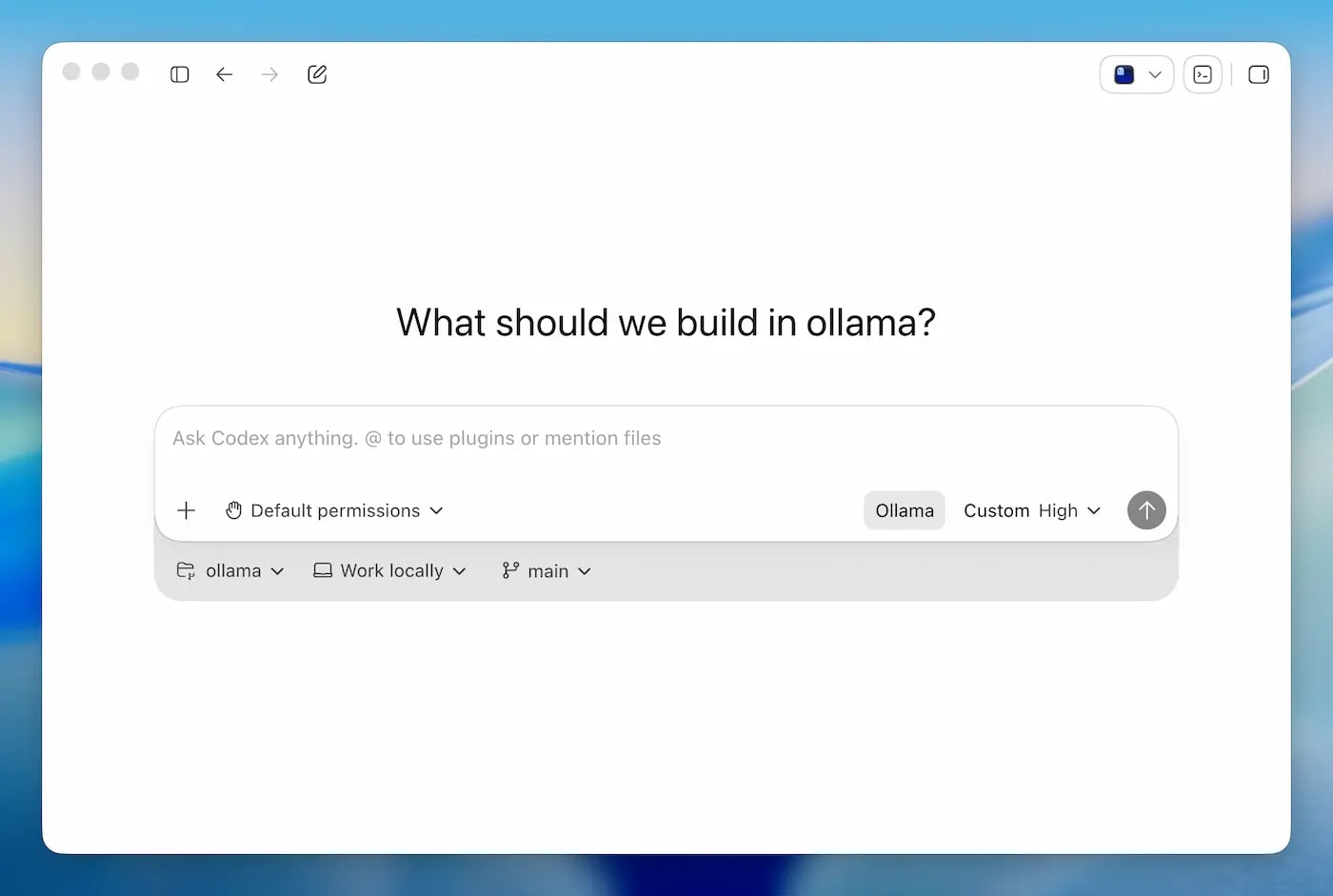
This release adds official support for OpenAI's Codex App: now the desktop AI coding agent
can be run on any local or cloud model via Ollama.
One command — and Codex works with your models, without a mandatory OpenAI subscription.
→ Read the official Ollama Codex App documentation
If you're not yet familiar with Ollama — start with
the guide to installing on Mac, Windows, and Linux.
If you're interested in comparing models for coding tasks — read
the top Ollama models in 2026.
📚 Article Contents
🎯 What has changed: why Ollama 0.24 is not just a patch
Short answer: Ollama 0.24 is the first release that transforms Ollama
from a tool for running models into a platform for AI coding agents.
Codex App now works on top of Ollama just like it does with the OpenAI API — only the models are local or cloud-based, at your choice.
Before Ollama 0.24, Codex App worked exclusively through the OpenAI API and required a Plus or Pro subscription.
Now, all you need is Ollama installed and one command — and Codex gets access to any local model.
What's new in Ollama 0.24 according to the official release on GitHub:
- ✔️ Codex App integration — official support for the desktop Codex App via
ollama launch codex-app
- ✔️ MLX memory trace logging — memory usage logging for models on Apple Silicon
- ✔️ Improved MLX sampler — higher generation quality on Mac M-series
- ✔️ More reliable updates — fixed issues with Ollama App auto-updates
- ✔️ Response caching for the
ollama show command — faster startup
But the main thing is not the list of features. The main thing is the change in concept.
Previously, Ollama was the answer to the question "how to run a model locally."
Now it's becoming the answer to the question "how to run an AI coding agent locally."
Codex App, Claude Code, OpenCode, Copilot CLI — they all now run via ollama launch.
This is a fundamentally different level: not just executing prompts, but a full-fledged agent
with access to the repository, terminal, browser, and task execution loop.
🎯 How Codex App works: not an IDE, but an AI agent with an interface
Short answer: Codex App is a desktop application from OpenAI for macOS and Windows.
Not an IDE plugin, not code autocompletion. It's a standalone agent
that receives a task, writes a plan, executes steps, runs code, and returns the result.
The difference between Copilot and Codex App: Copilot completes a line of code as you type.
Codex App receives a task like "add authentication via OAuth" and writes the code itself,
runs tests, fixes errors — without your involvement at every step.
⚠️ Important from personal experience: the fact that the agent "writes code itself" doesn't mean it writes it correctly.
In practice, AI coding agents often ignore SOLID principles, create God Objects,
mix logic in one class, or generate working but ugly code without understanding your architecture.
My rule: treat the Codex App result as a draft, not final code.
The agent is good at mechanical work — writing boilerplate, covering with tests,
refactoring according to a clear task. But architectural decisions — Single Responsibility,
proper layer separation, dependency injection — require your control.
Practical approach: before starting a task, describe architectural constraints to the agent in the prompt.
For example: "use the Repository pattern, a separate service layer from the controller, do not put business logic in entities."
Without this, the agent will choose the simplest path — and it's not necessarily the right one.
The interaction architecture after connecting Ollama looks like this:
- Codex App sends requests to the Ollama OpenAI-compatible endpoint (
http://localhost:11434/v1)
- Ollama forwards the request to the selected model — local or cloud
- The model returns a response in the tool calling / function calling format
- Codex App interprets the response, performs actions (writes files, runs commands)
- The execution result is returned to the model as context for the next step
How this differs from Cursor or Copilot Chat:
- Cursor — integrated into the editor, helps during the coding process. Codex App — a separate application, executes tasks asynchronously.
- Copilot — suggests autocompletions and chat. Codex App — a full execution loop: plan → code → run → verify → fix.
- Claude Code — CLI agent in the terminal. Codex App — a desktop application with a visual interface, browser, and review mode.
Codex App requires a model with reliable tool calling to work.
This is why model selection is critical — we'll discuss it in detail below.
If you want to understand the mechanics of tool calling more deeply —
read which Ollama models support Tool Calling: tests and benchmarks 2026.
🎯 Step-by-step installation: ollama launch codex-app
Short answer: Three steps — update Ollama, install Codex App, run one command.
Ollama automatically configures Codex to use the local endpoint.
Official Ollama documentation on Codex App integration —
support is available from version v0.24.0 and newer.
Step 1. Update Ollama to version 0.24.0+
Check current version:
ollama --version
If the version is lower than 0.24.0 — update:
# macOS and Linux
curl -fsSL https://ollama.com/install.sh | sh

# Windows — download the new installer from https://ollama.com/download
Step 2. Install Codex App
Download the Codex App desktop application for macOS or Windows from the official OpenAI website:
developers.openai.com/codex/quickstart.
After installation — open Codex App at least once manually.
This is necessary for the application to initialize its config files.
After the first launch — close it.
Step 3. Launch via Ollama
ollama launch codex-app
Ollama automatically configures Codex App to use its OpenAI-compatible endpoint
and opens the application. The configuration is saved — the next time Codex will open with your model.
Launch with a specific model immediately:
# Cloud model with vision support
ollama launch codex-app --model kimi-k2.6:cloud

# Local model
ollama launch codex-app --model qwen3:14b

# Local with lower RAM consumption
ollama launch codex-app --model gemma4:4b
Restore original Codex settings
If you want to revert Codex App to its previous profile (e.g., back to OpenAI API):
ollama launch codex-app --restore
Before overwriting, Ollama automatically saves a backup in
~/.ollama/backup/codex-app/ (on Windows ~ = user profile folder).
⚠️ Common issues and solutions
| Issue |
Cause |
Solution |
| Codex App does not open after the command |
The application has not been initialized yet |
Open Codex manually once, then run ollama launch codex-app again |
| Codex does not switch models |
The application is already running and has not reloaded |
Allow Ollama to restart Codex when prompted, or close it manually and run the command again |
| Model not found |
Model is not downloaded locally |
First ollama pull model-name, then ollama launch codex-app |
| Slow response or timeout |
Model is too large for the hardware or cold start |
Choose a smaller model or wait for the initial load |
Important: the Codex App profile (ollama launch codex-app) and the Codex CLI profile
(ollama launch codex) are separate. Changing one does not affect the other.
🎯 Which model to choose for Codex: comparison by task
Short answer: Codex App is an agent with tool calling and a multi-step execution loop.
It requires a model with *reliable* tool calling, not just "support".
Weak tool calling = the agent stops in the middle of a task or returns text instead of JSON.
Full list of Ollama models with tool calling support and reliability comparison —
in the article which Ollama models support Tool Calling: tests and benchmarks 2026.
Ollama recommends the following models for Codex in their newsletter (May 2026):
Cloud models (via Ollama Cloud)
| Model |
Feature |
When to choose |
kimi-k2.6:cloud |
Vision support (sees screenshots) |
When you need to annotate UI or debug via screenshot |
glm-5.1:cloud |
Strong in code, fast |
For general coding tasks with cloud quality |
Local models (without Ollama Cloud subscription)
| Model |
RAM |
Tool calling |
When to choose |
qwen3:14b |
~9 GB |
Excellent |
Optimal balance of quality / RAM for most tasks |
qwen3:8b |
~5 GB |
Good |
If RAM is limited, but acceptable quality is needed |
gemma4:31b |
~20 GB |
Excellent |
Maximum local quality, requires a powerful Mac |
gemma4:4b |
~3 GB |
Acceptable |
Weak hardware, simple tasks |
nemotron-3-super:cloud |
cloud |
Excellent |
Alternative without a paid Ollama Cloud subscription |
Download the model before launching:
# Recommended for most
ollama pull qwen3:14b

# If RAM is less than 10 GB
ollama pull qwen3:8b

# Maximum local quality
ollama pull gemma4:31b
More details on choosing models for specific hardware —
read Ollama on weak hardware: what to run on 8GB RAM.
Key criterion: tool calling reliability
For agent tasks — don't just look at the model size or "overall quality".
The main thing is: does the model return correct JSON for tool calls, does it hallucinate arguments,
does it correctly handle multi-step tool loops.
If a model doesn't support tool calling properly — it starts inventing arguments,
ignores task conditions, or simply responds with text where a structured call is expected.
Result: the agent goes in the wrong direction and you waste time fixing instead of working.
From personal experience — the practice of two models: I use two models in parallel.
A fast model (llama3.2:3b) covers ~70% of tasks and responds in 1-2 seconds —
for regular questions, generating boilerplate, short answers.
When precise prompt adherence, complex tool calling, or a multi-step agent is needed —
I switch to qwen3:8b or a larger one.
After a complex task — I switch back to the fast one. Waiting 8-12 seconds for each response
in normal operation mode is too long.
This approach provides a balance between speed and quality — you don't have to wait
for a large model to "warm up" for simple requests every time.
🎯 Built-in browser and Review Mode: what they offer in practice
Short answer: Two features that differentiate Codex App from CLI agents —
a built-in browser with annotations and a code review mode.
According to the official documentation, they actually exist and work.
How well they work depends on the model and the complexity of the task.
Built-in browser
According to official Ollama documentation,
Codex App can open local servers and websites in a built-in browser —
and allows leaving annotations directly on the page as context for the agent.
On paper, this sounds convenient: open a local dev server, highlight an element,
write a comment — and the agent understands what needs to be fixed without additional description.
⚠️ Honestly about limitations: the result strongly depends on
how accurately the agent interprets your annotation and the page context.
For simple UI edits — it works reasonably well. For more complex scenarios
(logic bugs, not layout issues) — an annotation in the browser doesn't replace a clear prompt.
Vision capabilities (when the model literally "sees" a screenshot) are available
only with models that support vision — for example, kimi-k2.6:cloud.
With local text models, the agent reads HTML, not images.
Review Mode
According to the documentation,
Review Mode allows you to view code changes within Codex App itself,
leave comments on specific lines, and ask the agent to refine them.
In principle, this is the same workflow as in GitHub PR review —
but without leaving the application. The agent sees its own diff and your comment
in the same context, reducing the amount of explanation needed.
⚠️ Honestly about limitations: Review Mode is useful when the agent has done
something close to correct and needs minor adjustments.
If the agent has fundamentally gone in the wrong direction with the architecture —
comments in review won't replace reformulating the task from scratch.
It's a tool for refinements, not for fixing fundamental errors.
🎯 Limitations of the local approach: where cloud Codex wins
Short answer: Local Codex via Ollama means privacy, offline access, and no subscription fees.
However, there are tasks where cloud OpenAI Codex (on GPT-4o or GPT-5.5) will be noticeably better.
It's important to know these boundaries — so you don't waste time on tasks where a local model won't cope.
More details on scenarios where Ollama wins against cloud APIs, and where it loses —
read Ollama vs ChatGPT vs Claude: which task requires the cloud.
| Criterion |
Local Codex (Ollama) |
Cloud Codex (OpenAI) |
| Code privacy |
✅ Code stays on your machine |
⚠️ Code is sent to OpenAI servers |
| Offline operation |
✅ Fully offline (local models) |
❌ Internet required |
| Cost |
✅ Free after hardware purchase |
⚠️ Subscription or per-token payment |
| Quality on complex tasks |
⚠️ Depends on model and hardware |
✅ GPT-5.5 is stronger on architectural tasks |
| Context window |
⚠️ Limited by RAM (usually 8k–32k) |
✅ Up to 128k+ tokens |
| Speed on large repos |
⚠️ Slower on CPU or weak GPU |
✅ Stable speed regardless of hardware |
| Vision (screenshots) |
⚠️ Only with kimi-k2.6:cloud or gemma4 |
✅ Native support in GPT-4o / GPT-5.5 |
| Parallel tasks (task tree) |
✅ Supported |
✅ Supported |
Where local Codex clearly wins
- Private or commercial code — when code cannot be sent to external servers
- Repetitive tasks — refactoring, writing tests, generating boilerplate where GPT-4 quality is not critical
- Offline environments — corporate networks without internet access
- Cost for high volume — if you generate thousands of tokens daily, local is cheaper
More on the advantages of self-hosted AI →
read the article
Where cloud Codex is better
- Large repositories — when the context doesn't fit into 8–16k tokens
- Complex architecture — where GPT-5.5 level is needed for a correct solution
- Vision tasks — analyzing UI screenshots without a cloud model
- Weak hardware — if your Mac or PC can't handle a 14B model
🎯 What is the optimal setup: hardware, model, settings
Short answer: For comfortable work with local Codex, you need at least 16 GB of RAM.
8 GB is possible, but limited. Below are specific recommendations depending on your hardware.
Mac Apple Silicon (recommended option)
| RAM |
Recommended model |
Expected speed |
| 8 GB |
qwen3:8b or gemma4:4b |
~15–20 tok/s, simple tasks |
| 16 GB |
qwen3:14b — optimal |
~20–30 tok/s, most tasks |
| 32 GB |
gemma4:31b or qwen3:32b |
~15–25 tok/s, complex tasks |
| 64 GB+ |
qwen3:72b or larger |
~10–20 tok/s, maximum quality locally |
Windows / Linux with NVIDIA GPU
| VRAM |
Recommended model |
Note |
| 8 GB |
qwen3:8b |
Fully in VRAM, fast |
| 12 GB |
qwen3:14b (Q4) |
Fits with Q4_K_M quantization |
| 16 GB+ |
qwen3:14b or gemma4:27b |
Comfortable work without swap |
| 24 GB+ |
gemma4:31b |
Maximum quality on GPU |
Optimal command set to start
# 1. Update Ollama
curl -fsSL https://ollama.com/install.sh | sh

# 2. Download model (for 16 GB RAM)
ollama pull qwen3:14b

# 3. Launch Codex App with the chosen model
ollama launch codex-app --model qwen3:14b

# Next time, it's enough to just:
ollama launch codex-app
# Ollama remembers the chosen model
Context settings for large repositories
By default, the context window depends on VRAM/RAM.
To work with large files or multiple files simultaneously,
you can increase the context via Modelfile:
# Create a Modelfile with a larger context
FROM qwen3:14b
PARAMETER num_ctx 16384

# Build the new model
ollama create qwen3-codex -f Modelfile

# Launch Codex with this model
ollama launch codex-app --model qwen3-codex
For details on context management and parameter settings,
see the article Ollama REST API: Integration into Your Application.
⚙️ Advanced settings: config, environment variables, benchmarks
For most users, ollama launch codex-app is sufficient.
But if you want more control over the agent's behavior or to get the
most out of a specific model, here's what you can configure manually.
1. Manual editing of ~/.codex/config.toml
The main Codex config is located at:
~/.codex/config.toml — Mac / Linux
%USERPROFILE%\.codex\config.toml — Windows
⚠️ Important: when you run ollama launch codex-app,
Ollama itself writes the necessary values to this file and saves a backup of previous settings
in ~/.ollama/backup/codex-app/.
Manual editing makes sense only if you want to change parameters not available in the standard launch —
for example, temperature or system prompt.
Example configuration for a local Ollama provider:
[model_providers.ollama]
name = "Ollama"
base_url = "http://localhost:11434/v1"

[profiles.local-coder]
model_provider = "ollama"
model = "qwen3:14b"
temperature = 0.3
⚠️ Note: the exact structure of the config file may vary
depending on the Codex App version. Before editing, check what's already in your file,
don't overwrite blindly. The num_ctx parameter may not be supported via config.toml —
it's more reliable to use Modelfile as described above to change the context.
2. Ollama environment variables
Ollama supports a number of official environment variables for fine-tuning.
The full list is in the official Ollama FAQ documentation.
The most useful for working with Codex are:
| Variable |
What it does |
Example |
OLLAMA_HOST |
Ollama server address and port |
0.0.0.0:11434 |
OLLAMA_KEEP_ALIVE |
How long to keep the model in memory |
30m or -1 |
OLLAMA_NUM_PARALLEL |
Number of parallel requests |
2 |
OLLAMA_FLASH_ATTENTION |
Flash Attention for Apple Silicon |
1 |
OLLAMA_NUM_GPU |
Number of GPU layers to offload |
99 (all layers) |
Set before launching:
# macOS / Linux
OLLAMA_KEEP_ALIVE=30m OLLAMA_FLASH_ATTENTION=1 ollama launch codex-app

# or permanently via ~/.zshrc / ~/.bashrc
export OLLAMA_KEEP_ALIVE=30m
export OLLAMA_FLASH_ATTENTION=1
3. Benchmarks: how much local models actually handle
⚠️ Disclaimer: exact SWE-bench figures are constantly updated
and depend heavily on the test configuration. The data below is approximate;
check the latest values on swebench.com
and in official model releases.
| Model |
SWE-bench Verified (approximate) |
Where to run |
| GPT-5.5 / Claude Sonnet 4.6 (cloud) |
~68–73% |
OpenAI / Anthropic API |
gpt-oss:120b via Ollama |
~62% |
Locally, requires 64+ GB RAM |
glm-5.1:cloud / large Qwen3 |
~58–68% |
Ollama Cloud or locally 32B+ |
qwen3:14b locally |
not officially tested |
16 GB RAM, good for routine tasks |
What this implies practically: local models of 14B–32B size
handle routine coding tasks well — refactoring, writing tests,
generating boilerplate. For complex agentic tasks requiring deep reasoning
across multiple files — cloud models have a noticeable advantage.
For most real-world tasks, the gap is not as critical as the percentages suggest.
❓ Frequently Asked Questions (FAQ)
Do I need an OpenAI subscription to use Codex App with Ollama?
No. Ollama configures Codex App to use its local endpoint.
An OpenAI subscription is only needed if you want to use OpenAI cloud models.
For local models, no subscription is required.
Is Codex App only available on macOS?
No. Codex App from OpenAI is available for macOS and Windows.
Ollama 0.24 supports integration on both platforms.
Linux is not yet supported by Codex App itself.
What is the difference between `ollama launch codex-app` and `ollama launch codex`?
ollama launch codex-app — launches the desktop Codex App with a graphical interface.
ollama launch codex — launches Codex CLI in the terminal.
These are separate profiles; changing one does not affect the other.
Are my configs saved if I run `ollama launch codex-app`?
Yes. Ollama saves a backup of the original Codex App configs in ~/.ollama/backup/codex-app/
before making any changes. You can restore them with the command ollama launch codex-app --restore.
Which model should I choose if I want to try with minimal requirements?
To start, use qwen3:8b (requires ~5 GB RAM) or gemma4:4b (~3 GB RAM).
They support tool calling and provide acceptable quality for simple tasks.
For serious work, we recommend qwen3:14b on 16 GB RAM.
Can Codex App via Ollama execute tasks in parallel (task tree)?
Yes, task tree is a feature of Codex App itself, independent of the underlying model.
However, parallel task execution puts a load on the model and requires more RAM.
On 8 GB, parallel tasks can cause noticeable slowdowns.
Does Codex App see my entire repository?
Codex App gets access to the repository you open in the application.
With local models, no code is sent externally.
With Ollama Cloud cloud models (kimi-k2.6:cloud, glm-5.1:cloud), requests go through Ollama Cloud.
✅ Conclusions
I tried Ollama 0.24 + Codex App right after its release — and my impression is mixed,
but generally positive. It really works: one command and Codex App starts using
a local model instead of the OpenAI API. For private code or offline environments — this is enough to try it out.
But it's important to understand that this is not a "replacement" for cloud Codex, but a different tool with different trade-offs. Here's what I learned from practice:
- ✔️ Installation is simple: update Ollama to 0.24, install Codex App, run
ollama launch codex-app — that's it.
- ✔️ The model decides everything: for most tasks on 16 GB RAM, I use
qwen3:14b — reliable tool calling and acceptable speed.
- ⚠️ Two models are better than one: a fast one (
llama3.2:3b) for 70% of tasks, a larger one — when precise tool calling is needed. Waiting 8–12 seconds for every simple response is too long for normal work.
- ⚠️ Agent code is a draft: Codex writes working code, but often without understanding SOLID principles and your architecture. Always review the result, especially if the task involves multiple layers of the application.
- ✔️ Built-in browser and Review Mode are convenient for simple UI edits and clarifications after a task is completed. For complex architectural problems, they won't replace proper prompting.
- ✔️ The local approach wins for private code, offline environments, and large generation volumes where the cloud is expensive.
- ⚠️ Cloud Codex is better for large repositories where context doesn't fit locally, and for tasks where GPT-5.5 quality is required.
My conclusion: Ollama 0.24 + Codex App is a useful tool if you approach it correctly.
Not as an autonomous developer who will do everything themselves, but as a quick way to write a draft version
or handle routine tasks — refactoring, tests, boilerplate.
Architecture and code review are still up to you.
If you want to understand how tool calling works under the hood of Codex —
read Which Ollama Models Support Tool Calling: Tests and Benchmarks 2026.
If you are interested in a full RAG pipeline on top of Ollama —
RAG with Ollama: From Pipeline to Production.
📖 Sources