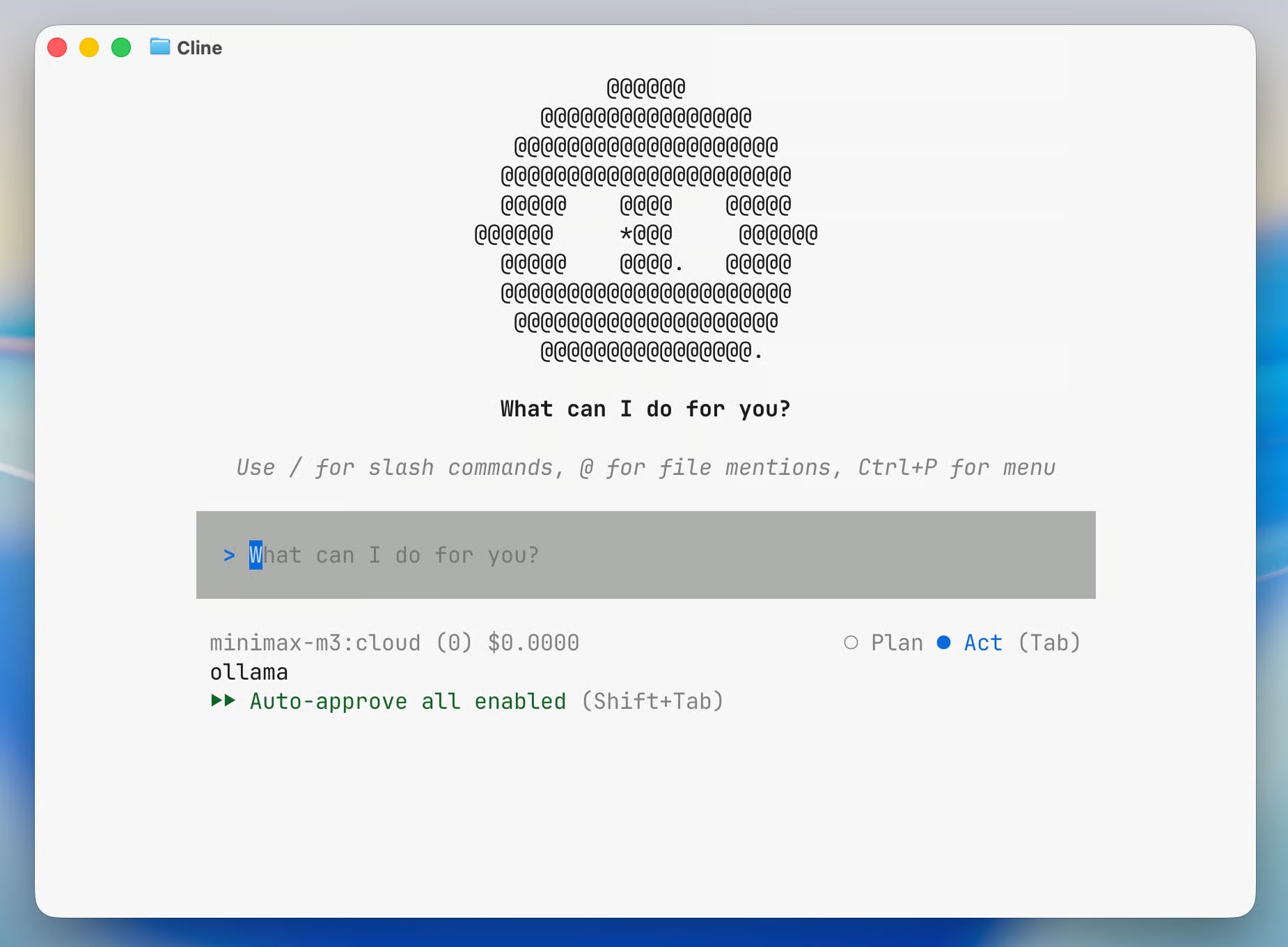
To run Cline via Ollama, you need: a current version of Ollama and Node.js ≥ 22
The most common error is an outdated Node.js version (21.x instead of 22+) or an incorrect PATH after Homebrew
An EACCES error is resolved by updating Node via Homebrew and correctly configuring the PATH
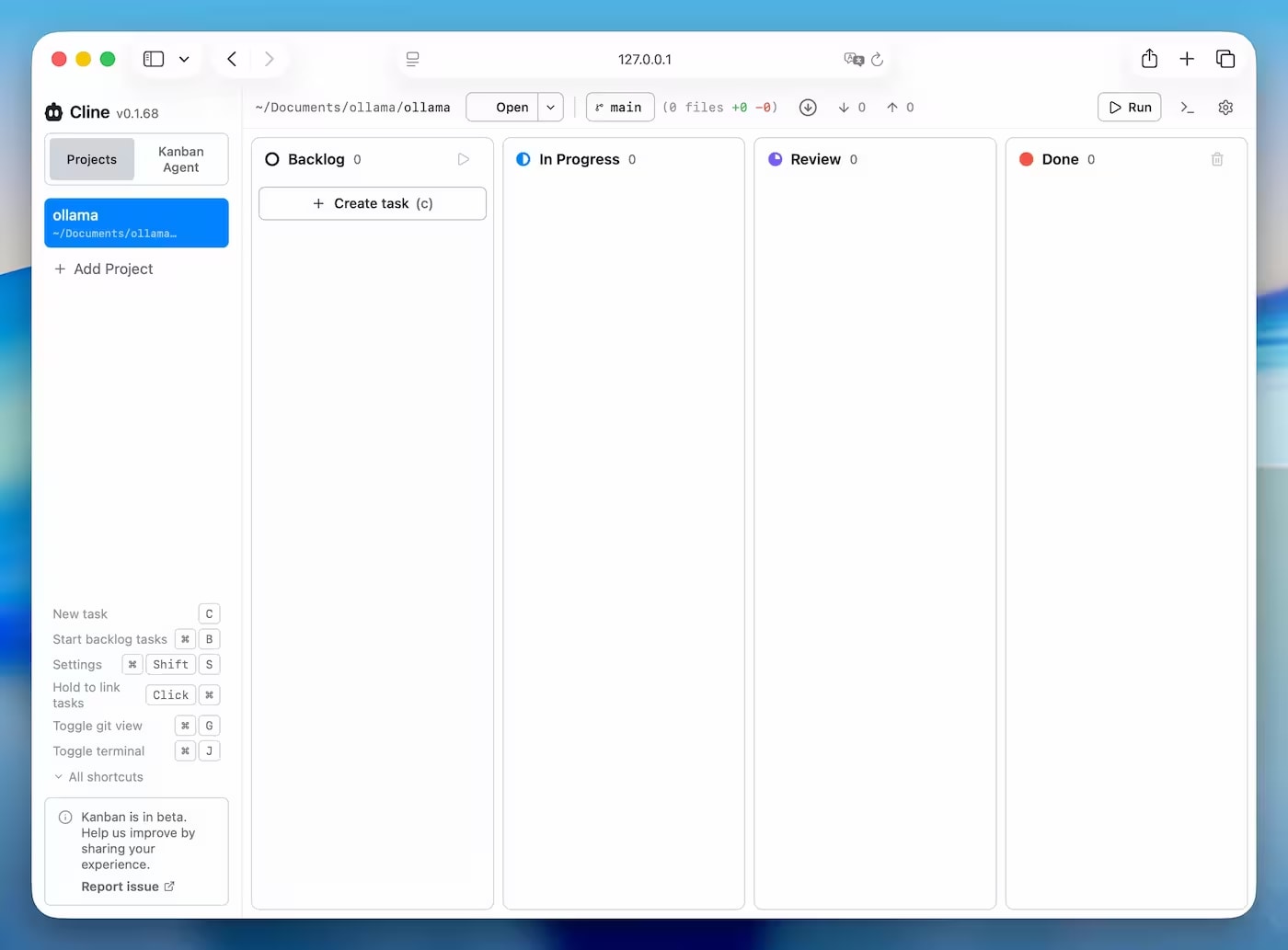
The Kanban Board is launched with the command ollama launch cline -- kanban and is available at http://127.0.0.1:3484/
On a MacBook M1 with 16 GB RAM, use cloud models kimi-k2.6:cloud or minimax-m3:cloud
This is a practical installation guide. If you are not yet familiar with what Cline is and how it differs from a regular AI chat, first read the Ollama Launch Cline review.
🖥️ Test Environment Configuration
The entire installation process, including error resolution, took me about 3–4 minutes, including updating Node.js, re-running the installation, and launching the Kanban interface.
Parameter
Value
Device
MacBook Pro M1
RAM
16 GB
Ollama
Current version with launch support
Node.js before update
21.4.0
Node.js after update
26.3.0
Operating Mode
Ollama + Cline CLI
Kanban UI
http://127.0.0.1:3484/
📋 Prerequisites
Before running ollama launch cline, make sure you have:
Ollama — a current version with support for the launch command. Download: ollama.com
Node.js ≥ 22 — Cline requires this specific version. Node 21.x and below will not work
npm — installed automatically with Node.js
~500 MB of free space — for Cline npm packages
I encountered an error due to an outdated Node.js version. I had Node.js 21.4.0 installed, but Cline requires version 22+. Therefore, I recommend starting by checking your Node.js version — this can save a lot of time.
Check current versions:
node --version
npm --version
ollama --version
⚙️ Step-by-Step Installation Guide
Step 1. Install or Update Ollama
On macOS via Homebrew:
brew install ollama
Or download the installer from ollama.com and run the Ollama application.
Step 2. Install Node.js ≥ 22
If you don't have Node.js yet or the version is lower than 22, install it via Homebrew:
brew install node
Homebrew will install the latest version (at the time of writing — 26.3.0). After installation, verify:
node --version
# Expected output: v26.3.0 or higher
If the terminal still shows the old version, refer to the section on PATH below.
Step 3. Run ollama launch cline
ollama launch cline
If Cline is not yet installed, Ollama will ask for confirmation:
Cline is not installed. Install with npm? [y/N]
Type y and press Enter. The installation via npm will begin.
Step 4. Wait for Installation to Complete
During installation, you will see the standard npm output. Warnings may appear, such as:
This is a warning about a deprecated dependency of one of the packages. It does not affect Cline's operation — ignore it.
Step 5. Select a Model and Start Working
After installation, Ollama will prompt you to select a model. More details on selection are in the next section.
🤖 Model Selection During First Launch
After successful installation, Ollama will display a list of available models. At the time of publication, the list looks like this:
? Select a model:
  kimi-k2.6:cloud
  minimax-m3:cloud
  glm-5.1:cloud
  qwen3.6
  gemma4
Use the arrow keys to select a model and press Enter. The agent will launch.
For MacBook M1 with 16 GB RAM, we recommend starting with kimi-k2.6:cloud — a cloud model does not load RAM and responds quickly. A detailed comparison of models is further down in the article.
🛠️ Common Errors and Their Solutions
Here is a complete table of errors I encountered during installation on M1 and how I resolved each one:
Reason: npm is trying to write files to the system directory /usr/local/lib/node_modules, which the current user does not have write permissions for.
Solution: this error disappears after updating Node.js via Homebrew and correctly configuring the PATH. Homebrew installs Node in /opt/homebrew/, where your user has full permissions. After the PATH points to the Homebrew version of Node, the problem is resolved.
Do not use sudo npm install as a quick fix — this can lead to future permission issues. The correct approach is to update Node and fix the PATH.
Error 3: Homebrew installed Node, but the terminal shows the old version
You installed Node 26 via Homebrew, but:
node --version
# v21.4.0 ← still the old version
Reason: the old Node version from /usr/local/bin is at the beginning of the PATH, overriding the Homebrew version from /opt/homebrew/bin.
Check which version the system is actually using:
which node
# /usr/local/bin/node ← old, not Homebrew
Solution — add the Homebrew path to the beginning of the PATH. Open ~/.zshrc (or ~/.bash_profile) and add the following line:
export PATH="/opt/homebrew/bin:$PATH"
Apply the changes:
source ~/.zshrc
Check again:
which node
# /opt/homebrew/bin/node ← now correct
node --version
# v26.3.0
Now try running ollama launch cline again.
🗂️ How to Launch Kanban Board
Kanban mode allows you to run multiple agents in parallel. The command:
ollama launch cline -- kanban
Note the double dashes with spaces: --kanban. This is important — without spaces, the command will not work.
After launching, the terminal will display a message about the server starting. The browser might not open automatically — this is normal.
Where to find the Kanban web interface
Open your browser manually and go to the address:
http://127.0.0.1:3484/
You will find a full Kanban interface there. Each card is a separate agent with its own task and real-time progress.
If port 3484 is occupied, you can find and terminate the process with a single command:
kill -9 $(lsof -ti:3484)
After that, restart Kanban. If Cline still uses a different port, check the address in the terminal output.
💾 Which Models to Choose for MacBook M1 16GB
Based on personal experience working with AskYourDocs on a MacBook Pro M1 16GB:
Model
Type
Comfort Level
Recommendation
kimi-k2.6:cloud
Cloud
✅ Excellent
Optimal for starting
minimax-m3:cloud
Cloud
✅ Excellent
Optimal for general tasks
glm-5.1:cloud
Cloud
✅ Good
Alternative
gemma4
Local
🟡 Acceptable
If privacy is needed
qwen3.6
Local
⚠️ Heavy
Memory at its limit, use with caution
You can switch between models by simply re-running the command with a different --model:
ollama launch cline --model minimax-m3:cloud
🚀 First commands for testing Cline
After a successful launch, try these commands to verify that the agent is working correctly:
Analyze this repository and explain its architecture
Cline will go through the file structure and return a description of the project. This is a good first test — you'll see how accurately the agent understands your code context.
Find duplicated code in this project
The agent will find duplicate fragments and suggest refactoring with a preview diff.
Suggest performance improvements for the service layer
A good test for Java projects — it checks if the agent understands the Spring Boot architecture and where optimizations can be made.
Remember: before each file change, Cline shows a diff and waits for your confirmation. The agent does not make changes without permission.
More details about the agent's capabilities and comparisons with Cursor and Claude Code can be found in the Ollama Launch Cline review.
❓ FAQ
Why doesn't Cline start after installing Node 26?
Most likely, PATH still points to the old Node version. Run which node and make sure the path leads to /opt/homebrew/bin/node. If not, add export PATH="/opt/homebrew/bin:$PATH" to ~/.zshrc and run source ~/.zshrc.
Why does the Kanban Board only open in the terminal and not in the browser?
The browser doesn't always open automatically. Manually go to http://127.0.0.1:3484/ — there you'll find a full web interface.
Do I need VS Code to work with Cline via Ollama?
No. Via ollama launch cline, the agent launches as a separate CLI tool with a Kanban web interface. VS Code is not required, although Cline also exists as a VS Code extension.
Can I use local models for confidential code?
Yes. With local models (qwen3.6, gemma4), the code never leaves your machine. Cloud models (:cloud) send requests to external providers.
Which model is best suited for Java programming?
Based on experience with Spring Boot projects, kimi-k2.6:cloud shows the best balance between quality, speed, and convenience on M1. For fully local work, gemma4 is a compromise between quality and RAM load.