RAG for PDF: How to Ask Questions About Documents
You want to ask questions about your PDF — a contract, a report, or documentation. You copy code from a tutorial, run it — and get meaningless answers or errors.
The problem is almost never with the LLM. It arises at the very first step — during text extraction from the PDF.
⚡ In Short
- ✅ PDFs come in three types: text-based, scanned, hybrid — and each requires a different parsing approach
- ✅ PyPDF is the most popular, but the worst: for tables and complex layouts, use PyMuPDF or pdfplumber
- ✅ 90% of response quality issues are pre-LLM: parsing, text structure, chunk size
- 🎯 You will get: a working PDF Q&A — two options: fast (OpenAI API) and local (Ollama)
- 👇 Below: PDF diagnostics, parser comparison, full code, and a checklist
📚 Table of Contents
🎯 How RAG for PDF Works: The Pipeline from File to Answer
The LLM doesn't read your PDF in its entirety. It only answers based on the fragment you provide. The quality of the answer = quality of extracted text + quality of search.
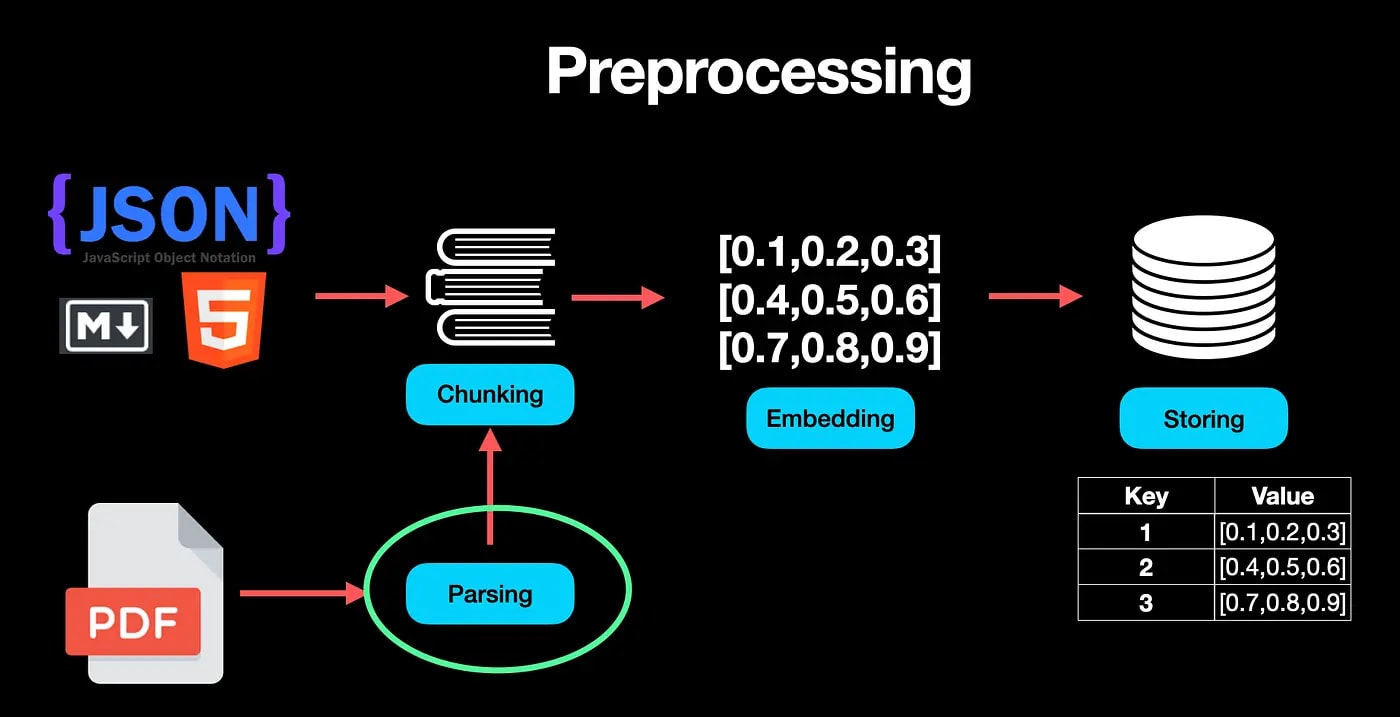
Here's what the full pipeline looks like:
PDF File
   ↓
[1. PARSING] → extract text (PyMuPDF / pdfplumber / OCR)
   ↓
[2. CHUNKING] → divide into fragments of 500–1000 characters
   ↓
[3. EMBEDDINGS] → each fragment → numerical vector
   ↓
[4. VECTOR DB] → store vectors (ChromaDB / Qdrant)
   ↓
[5. QUERY] → your question → also convert to a vector
   ↓
[6. SEARCH] → find top 3–5 nearest fragments
   ↓
[7. LLM] → pass question + fragments → get answer
Where the Pipeline Most Often Breaks
In practice, the embeddings and LLM steps (OpenAI, Cohere, Ollama) usually work stably. The main problems arise much earlier — at the PDF parsing stage.
If you get "mush" instead of text at the input (merged words, lost paragraphs, broken tables), no search or LLM can fix it. That's why this article starts with PDF diagnostics, not model selection.
Conclusion: The quality of PDF Q&A is determined at the parsing stage, not at the answer generation stage.
📌 Section 2. What Kind of PDF Do You Have? 2-Minute Diagnosis
Types of PDFs in 2026
PDFs come in four main types: text-based (has a text layer — parses easily), scanned (image-only — requires OCR), hybrid (mix of text and images), and complex (with tables, multi-column layouts, diagrams).
Before choosing a tool, correctly identify the type, as the quality of the entire RAG pipeline depends on it.
🔍 Quick Diagnosis — 3 Steps:
- Try to select text with your mouse in a PDF reader (Adobe Acrobat, browser, Preview). If the text selects normally — there's a text layer. If not — it's a scan or an image.
- Check for tables and complex layouts. Multi-column texts, nested tables, diagrams — a signal that a more powerful parser is needed.
- Look at the file size. A scanned 10-page A4 PDF usually weighs 3–8 MB. A pure text one — 100–400 KB.
| PDF Type |
Indicator |
Recommended Tool (2026) |
| Text-based (native) |
Text selects easily, file is light |
PyMuPDF (fastest) or Docling |
| Scanned (image-only) |
Text does not select, only images |
LlamaParse or Docling (with built-in OCR) / Tesseract + EasyOCR |
| Hybrid |
Some pages are text, some are scanned |
PyMuPDF + selective OCR or LlamaParse / Docling (automatically handles everything) |
| With tables / complex layout |
Tables, columns, diagrams, forms |
LlamaParse (best structure) or Docling / pdfplumber (for simple cases) |
If you're unsure — check programmatically. Here's a quick test with PyMuPDF:
import fitz  # PyMuPDF
doc = fitz.open("your_file.pdf")
text = doc[0].get_text()
print(f"Characters on the first page: {len(text)}")
# If < 100–150 characters → likely a scan or an empty text layer
2026 Conclusion: 5 minutes for correct PDF type diagnosis saves tens of hours of debugging and significantly improves RAG response accuracy. For simple documents, classic tools are sufficient, but for real business documents (reports, contracts, scientific articles), modern AI-powered parsers (LlamaParse and Docling) often provide much better results "out of the box."
📌 Three Parsers: PyPDF vs pdfplumber vs PyMuPDF + Modern AI-Powered Alternatives
Which Parser to Choose in 2026
For simple text-based PDFs — PyMuPDF (fitz) remains one of the best in terms of speed and reliability.
For documents with tables — pdfplumber handles basic cases well.
But if you have complex documents (financial reports, scientific articles, contracts, multi-column layouts, diagrams) — classic libraries are often no longer sufficient. In 2026, it's recommended to start with modern AI-powered parsers: LlamaParse or Docling.
PyPDF is still installed in thousands of old tutorials as the "standard." But in terms of extracted text quality and structure preservation, it consistently loses to both classic and, especially, modern AI tools. This directly affects the accuracy of your RAG responses.
Detailed Comparison (Updated 2026)
| Criterion |
PyPDF |
pdfplumber |
PyMuPDF (fitz) |
LlamaParse |
Docling (IBM) |
| Speed |
Medium |
Slow |
⚡ Fastest |
Medium (API) |
Medium / Slow (faster with GPU) |
| Text Quality |
❌ Poor |
✅ Good |
✅ Excellent |
🌟 Excellent (LLM-based) |
🌟 Excellent |
| Tables and Structure |
❌ Breaks |
✅ Best among classic |
⚠️ Basic |
🌟 Best preservation |
🌟 Excellent accuracy |
| Complex Layout (columns, diagrams) |
❌ Loses order |
✅ Good |
✅ Good |
🌟 Excellent |
🌟 Excellent |
| Multimodality (images, formulas) |
No |
Limited |
Partial |
✅ Good |
✅ Excellent |
| Cost / License |
Free |
Free |
Free |
Freemium (paid after limit) |
Fully open-source |
| Installation / Usage |
pip install pypdf |
pip install pdfplumber |
pip install pymupdf |
Via LlamaIndex (API key) |
pip install docling |
Why Classic Parsers Are Often Insufficient Now
PDF is not a text file, but a set of objects with coordinates. Classic libraries (PyPDF, PyMuPDF, pdfplumber) work well on simple documents but struggle with complex layouts, nested tables, diagrams, and mixed content.
Modern AI-powered parsers (LlamaParse, Docling) use vision models and LLMs to understand documents like a human would. They return clean Markdown or structured JSON, significantly improving retrieval quality in RAG.
When to Use Which Parser in 2026
- ✔️ Simple text-based PDF (reports, books, contracts without complex tables): PyMuPDF — fast and free.
- ✔️ PDFs with simple tables: pdfplumber or Docling.
- ✔️ Complex documents (finance, science, multi-column, diagrams): LlamaParse (best structure) or Docling (open-source, accurate).
- ✔️ Maximum compatibility and no budget: start with PyMuPDF + pdfplumber, but be prepared for manual refinement.
Conclusion:
Replacing PyPDF with PyMuPDF is the easiest quick win.
But for serious RAG with high response accuracy, switch to LlamaParse or Docling — this provides the biggest quality boost on complex PDFs without huge developer effort.
Tip: I usually start with PDF diagnostics (see Section 2). If the document is simple, I use classic tools. If there are tables, columns, or I see "broken" text, I immediately test LlamaParse or Docling.
📌 Scanned PDFs and OCR: When It's Needed and How to Determine
OCR for Scanned PDFs
OCR is only needed if your PDF is a scanned image without a text layer. Check this before installation: if PyMuPDF returns fewer than 100 characters from a page, OCR is likely needed. For simple cases, Tesseract will suffice; for better quality on complex documents, use EasyOCR.
Do not install OCR "just in case." Tesseract adds complexity to the pipeline and increases processing time by 5–20 times compared to text parsing.
How to Determine if OCR is Needed
import fitz

def needs_ocr(pdf_path, threshold=100):
    doc = fitz.open(pdf_path)
    chars_per_page = []
    for page in doc:
        chars_per_page.append(len(page.get_text()))
    avg = sum(chars_per_page) / len(chars_per_page)
    return avg < threshold

# Usage:
if needs_ocr("my_document.pdf"):
    print("→ OCR needed (Tesseract or EasyOCR)")
else:
    print("→ Text PDF, OCR not needed")
Tesseract vs EasyOCR: When to Use Which
|
Tesseract |
EasyOCR |
| Speed |
Faster |
Slower |
| Quality on clean scans |
✅ Good |
✅ Excellent |
| Handwritten text |
❌ |
⚠️ Partial |
| Installation |
System dependency + pytesseract |
pip install easyocr |
A minimal example with Tesseract (official Tesseract documentation):
from pdf2image import convert_from_path
import pytesseract

pages = convert_from_path("scanned.pdf", dpi=300)
full_text = ""
for page in pages:
    full_text += pytesseract.image_to_string(page, lang="ukr+eng")

print(full_text[:500])
⚠️ Important: OCR on complex documents (tables, diagrams, mixed layouts) yields significantly lower quality. For such cases, see the article
1.5 Advanced ETL, which covers LlamaParse and Docling.
Conclusion: OCR is needed less often than it seems—first check for a text layer, then decide.
📌 Tables in PDF: Why a Standard Parser Breaks
tables in PDF
PDF does not have a native "table" concept—it's just a collection of text objects with coordinates. A standard parser extracts them in an arbitrary order, losing the row-column structure. For tables, use pdfplumber with the extract_table() method.
If your PDF contains tables, half the tutorials on Medium won't work for you. They show results on static text.
What PyPDF Gets from a Table
Imagine a table: Name | Price | Quantity. PyPDF often returns:
"NamePriceQuantity Product A 500 10 Product B 750 5"
Instead of structured text—a mess. An LLM will try to answer your question "what is the price of product B?"—and get it wrong.
How to Correctly Extract a Table Using pdfplumber
import pdfplumber

with pdfplumber.open("report.pdf") as pdf:
    for page in pdf.pages:
        tables = page.extract_tables()
        for table in tables:
            for row in table:
                # Convert table row to readable text
                row_text = " | ".join([cell or "" for cell in row])
                print(row_text)
This gives you structured text in the format Product B | 750 | 5, which an LLM understands correctly. More on working with tables, diagrams, and complex documents—in the article 1.5 Advanced ETL: Multimodal Ingestion.
Conclusion: tables are the most common reason for poor answers in RAG; pdfplumber solves the problem for most cases.
💼 Practical Tutorial: PDF → Q&A (Two Options)
What You'll Build
Two complete pipelines: Option A—quick start via OpenAI API (takes ~10 minutes, costs ~$0.01 for testing), Option B—local via Ollama (free, confidential, but requires 8+ GB RAM).
👉 Details on local RAG with Ollama:
complete guide from pipeline to production
Installing Dependencies
pip install pymupdf chromadb openai langchain-openai langchain-community
For the local option, additionally—install Ollama and download a model:
ollama pull nomic-embed-text   # embedding model
ollama pull qwen2.5:7b         # or llama3.2, mistral
Option A: Fast Start (OpenAI)
import fitz  # PyMuPDF
import chromadb
import os
from chromadb.utils import embedding_functions
from langchain_openai import ChatOpenAI
from langchain.text_splitter import RecursiveCharacterTextSplitter

# --- Step 1: Extract text ---
def extract_text(pdf_path):
    doc = fitz.open(pdf_path)
    return "\n".join(page.get_text() for page in doc)

# --- Step 2: Split into chunks ---
def split_text(text):
    splitter = RecursiveCharacterTextSplitter(
        chunk_size=800,       # characters per chunk
        chunk_overlap=100,    # overlap between chunks
        separators=["\n\n", "\n", ". ", " "]
    )
    return splitter.split_text(text)

# --- Step 3: Store in vector DB ---
def build_index(chunks, collection_name="pdf_rag"):
    client = chromadb.Client()

    # Use OpenAI embedding function for Chroma
    openai_ef = embedding_functions.OpenAIEmbeddingFunction(
        api_key=os.environ["OPENAI_API_KEY"],
        model_name="text-embedding-3-small"
    )

    collection = client.create_collection(
        name=collection_name,
        embedding_function=openai_ef
    )

    # Add texts (Chroma will vectorize them via API automatically)
    collection.add(
        documents=chunks,
        ids=[f"chunk_{i}" for i in range(len(chunks))]
    )
    return collection

# --- Step 4: Q&A ---
def ask(question, collection, top_k=4):
    # Search is done via query_texts (the database will embed the question itself)
    results = collection.query(query_texts=[question], n_results=top_k)
    context = "\n---\n".join(results["documents"][0])

    llm = ChatOpenAI(model="gpt-4o-mini", api_key=os.environ["OPENAI_API_KEY"])
    prompt = f"""Answer ONLY based on the provided context.
If the answer is not in the context, state it honestly.

Context:
{context}

Question: {question}"""
    return llm.invoke(prompt).content

# --- Run ---
text = extract_text("your_document.pdf")
chunks = split_text(text)
print(f"Chunks: {len(chunks)}, first: {chunks[0][:100]}...")
collection = build_index(chunks)

answer = ask("What is the total contract amount?", collection)
print(answer)
Option B: Locally via Ollama (Private and Free)
import fitz
import chromadb
from chromadb.utils import embedding_functions
from langchain_community.llms import Ollama
from langchain.text_splitter import RecursiveCharacterTextSplitter

# Text extraction—same as in Option A
def extract_text(pdf_path):
    doc = fitz.open(pdf_path)
    return "\n".join(page.get_text() for page in doc)

def split_text(text):
    splitter = RecursiveCharacterTextSplitter(
        chunk_size=800, chunk_overlap=100,
        separators=["\n\n", "\n", ". ", " "]
    )
    return splitter.split_text(text)

# Ollama-embeddings (local)
def build_index_local(chunks, collection_name="pdf_rag_local"):
    client = chromadb.Client()

    ollama_ef = embedding_functions.OllamaEmbeddingFunction(
        model_name="nomic-embed-text",
        url="http://localhost:11434/api/embeddings",
    )

    collection = client.create_collection(
        name=collection_name,
        embedding_function=ollama_ef
    )

    collection.add(
        documents=chunks,
        ids=[f"chunk_{i}" for i in range(len(chunks))]
    )
    return collection

def ask_local(question, collection, top_k=4):
    results = collection.query(query_texts=[question], n_results=top_k)
    context = "\n---\n".join(results["documents"][0])

    llm = Ollama(model="qwen2.5:7b")  # or llama3.2, mistral
    prompt = f"""Answer ONLY based on the provided context.
If the answer is not present—state it honestly.

Context:
{context}

Question: {question}"""
    return llm.invoke(prompt)

# --- Run ---
text = extract_text("your_document.pdf")
chunks = split_text(text)
collection_local = build_index_local(chunks)

answer = ask_local("What is the total contract amount?", collection_local)
print(answer)
⚠️ Chunking in this tutorial: chunk_size=800 and chunk_overlap=100 are working values for most text-based PDFs. If answers are inaccurate, try 400–600 characters (higher detail) or 1000–1200 (more context). Detailed logic for parameter selection—in the article
1.3 Chunking Strategies.
Conclusion: both options are a working baseline. If answers are poor, proceed to debugging below, rather than changing the model.
💼 Section 7. Debugging: Why Answers Are Bad
How I diagnose the problem
Before blaming the LLM, I usually check the chunks myself. I print the first 5 chunks and read them with my own eyes. If they look unreadable, the problem is with parsing, not the model.
The golden rule of RAG debugging: if the LLM sees garbage, it generates garbage. Garbage in, garbage out.
Symptom → Cause → Solution
| Symptom |
Most Likely Cause |
Solution |
| "I couldn't find the information" |
Parsing returned empty or corrupted text |
Print extract_text(), check the output |
| The answer is there, but incorrect |
The wrong chunk was included in the context |
Print results["documents"][0], check relevance |
| Confuses numbers from tables |
Table parsed with errors |
Switch to pdfplumber with extract_table() |
| The answer is cut off / incomplete |
Chunks are too small, information is split between them |
Increase chunk_size to 1000–1200 or chunk_overlap to 150–200 |
| Text looks like "FiRsT PaGe HeAdEr 2 3 4" |
PDF with scanned pages or non-standard encoding |
OCR (Tesseract) or PyMuPDF with flags=fitz.TEXT_PRESERVE_LIGATURES |
| Headers and page numbers get into chunks |
PDF does not distinguish content from service elements |
Filter short lines: if len(line) > 40 |
Quick Chunk Quality Check
# Run this BEFORE building the index
chunks = split_text(text)

print(f"Number of chunks: {len(chunks)}")
print(f"Average length: {sum(len(c) for c in chunks) / len(chunks):.0f} characters")
print("\n--- First 3 chunks ---")
for i, chunk in enumerate(chunks[:3]):
    print(f"\n[Chunk {i}]:\n{chunk[:300]}\n{'='*40}")

# If chunks look normal - the problem is in search or LLM
# If they look like gibberish - the problem is in parsing
Conclusion: in 80% of cases, the problem with answer quality is solved at the parsing or chunk size level, without changing the LLM.
💼 Section 8. Checklist "PDF Ready for RAG"
What to check before launching
Go through the checklist after parsing and before building the index. This will save debugging time after everything is already built.
Parsing
- ☐ Determined PDF type (text-based / scanned / hybrid)
- ☐ Selected the correct parser (PyMuPDF for text, pdfplumber for tables)
- ☐ Reviewed the first 500 characters of the extracted text — it looks readable
- ☐ If there are tables — checked
extract_table() on pdfplumber
- ☐ If scanned — OCR is running, results checked
Chunks
- ☐ Printed the first 3–5 chunks, read them with my own eyes
- ☐ Average chunk length: 500–1000 characters (not 50, not 3000)
- ☐ Chunks do not start or end in the middle of a sentence (or this is acceptable for your case)
- ☐ Headers, page numbers, service symbols are filtered out or do not interfere
Search (retrieval)
- ☐ Performed a test query and printed the results —
results["documents"][0]
- ☐ Checked that the found chunks actually correspond to the question
- ☐ top_k = 3–5 (not 1 — too little context, not 15 — too noisy)
Answer
- ☐ Prompt contains the instruction "answer only based on the context"
- ☐ Tested 5–10 questions manually
- ☐ Checked behavior on questions for which there is *no* answer in the document
❓ Frequently Asked Questions (FAQ)
What is the difference between RAG for PDF and "Chat with PDF" services like ChatPDF?
ChatPDF, Adobe AI, Notion AI are ready-made products that do the same thing under the hood: parsing → embeddings → retrieval → LLM. By building RAG yourself, you control every step, can use local models for confidential documents, and adjust parameters for your PDF type.
How much does it cost to process one PDF through OpenAI?
For a 50-page document (~25,000 words): embedding with text-embedding-3-small — less than $0.01. Each question (4 chunks of 800 characters + answer via gpt-4o-mini) — ~$0.001–0.003. That is, 100 questions on one document cost less than $0.30.
Can I process multiple PDFs simultaneously?
Yes. Simply process each file in a loop and store all chunks in a single ChromaDB collection. For better search, add metadata with the filename: collection.add(..., metadatas=[{"source": filename}]). This way, you can filter answers by a specific document.
Why does Ollama give worse answers than GPT-4o?
Local models (Qwen 2.5 7B, Llama 3.2, Mistral 7B) provide 60–75% of GPT-4o's quality on most RAG tasks. This is normal: smaller model = fewer capabilities for instruction following. If quality is critical — use OpenAI or Anthropic API. If privacy is critical — Ollama. Detailed comparison: RAG with Ollama.
My PDF is password-protected — what should I do?
PyMuPDF supports decryption: doc.authenticate("password") before extracting text. If the password is unknown — parsing is impossible without specialized tools.
✅ Conclusions
- 🔹 Determine your PDF type (text-based / scanned / with tables) — the choice of parser depends on this
- 🔹 Replace PyPDF with PyMuPDF for text or pdfplumber for tables — this is the easiest quality improvement
- 🔹 Always check chunks with your own eyes before building the index — 5 minutes of diagnostics save hours of debugging
- 🔹 For a quick start — OpenAI API; for privacy and free — Ollama with nomic-embed-text
- 🔹 If answers are bad — first check parsing and chunks, not replace the LLM
Main idea: RAG for PDF is not LLM magic, but text extraction engineering; build correct parsing — and the quality of answers will appear on its own.
👉 If you want to understand deeper how the LLM itself works (tokens, transformers, embeddings):
detailed explanation here
Related articles:
1.3 Chunking Strategies ·
1.4 Embedding Models ·
RAG from PoC to production ·
1.1 RAG with Ollama ·
Ollama: what it is ·
Vector Search for Beginners: How RAG Finds the Right Information