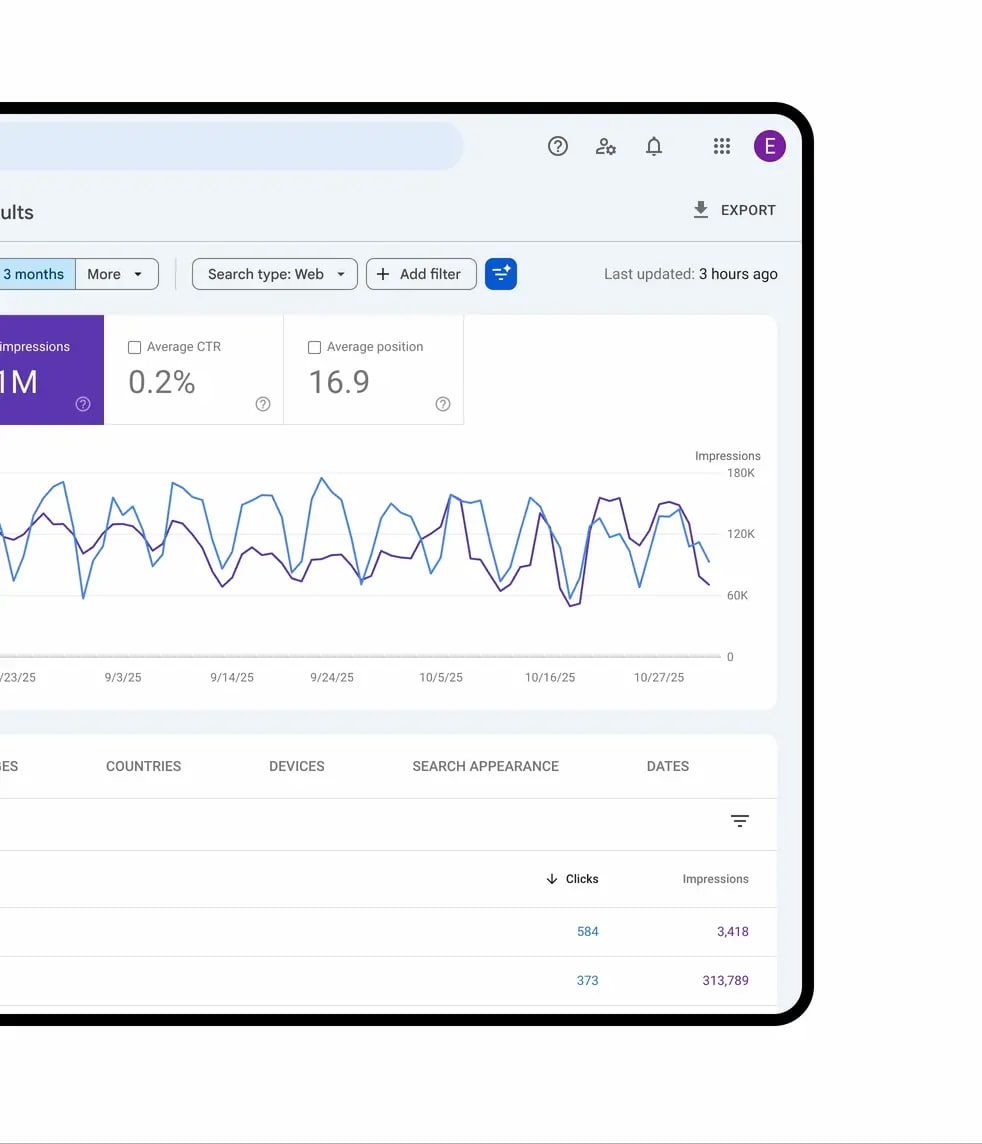

Imagine that instead of 10–15 clicks on filters in Search Console, you simply type: "Show how traffic from mobile devices changed for queries about 'buy iPhone' over the last 3 months compared to last year" — and in 3-4 seconds you get a ready-made report. Sounds like science fiction? No, it's already a reality. On December 4, 2025, Google launched AI-powered configuration — and this is the biggest Search Console update in recent years.
⚡ In short
- ✅ What it is: AI understands natural language queries and automatically configures filters, metrics, and comparisons in Performance reports
- ✅ Access: experimental feature, gradual rollout from December 4, 2025, not yet available to everyone
- ✅ Language: works in English and 10+ other languages
- 🎯 You will get: 5 real-world examples of prompts, honest pros/cons, my tests, and ideas on how to get the most out of the feature today
- 👇 Read more below — with examples and conclusions
Table of contents:
- 📌 What is AI-powered configuration and how does it work
- 📌 How to enable the feature (if you already have it)
- 📌 10 working prompts in Ukrainian that I tested
- 📌 Pros and cons: honest review after a week of use
- 📌 Comparison with analogs (Semrush, Ahrefs, GSC old)
- 💼 How I would improve this feature (suggestions for Google)
- 💼 What to expect in 2026
- ❓ Frequently Asked Questions (FAQ)
- ✅ Conclusions
🎯 What is AI-powered configuration and how does it work 🤖
"Now you can describe the report you want to see, and Search Console will do all the manual work for you" — Google Search Central Blog, December 4, 2025
AI-powered configuration is a revolutionary experimental feature ✨ in Google Search Console that allows you to configure reports using natural language 🗣️. It appeared directly in the "Performance" tab, specifically in the "Queries" section 🔍. Instead of manually clicking through dozens of filters, dates, devices, or metrics, you simply enter a described query in Ukrainian (or any other of the 40+ languages), and artificial intelligence instantly turns it into a ready-made report 📊. It's similar to AI assistants in Google Ads or Analytics, but adapted specifically for analyzing search traffic.
Official documentation on the Google Search Central website 📖 describes in detail how it is being implemented: the feature began rolling out on December 4, 2025, for a limited number of sites and will gradually be rolled out to all users by the end of 2025–early 2026. Google emphasizes that this is a tool for simplifying routine work 🛠️, but not for complete automation — **always check** ✅ the proposed settings, because AI can sometimes inaccurately interpret the nuances of the query.
How it works step by step: ⚙️
- Entering the query: ✍️ In the "Describe report in natural language" field, you write a phrase like: "Show clicks from mobile devices 📱 for queries containing 'buy smartphone' in [your country] over the last 3 months". Complex constructions with comparisons, conditions, and multiple parameters are supported.
- Automatic processing: 🧠 AI analyzes the text and generates three key elements:
- Filters: Automatically applies restrictions by queries (**query**), pages (**page**), countries (**country**), devices (**device**: mobile, desktop, tablet), search types (**search appearance**: images, videos, etc.) and date range (**date range**).
- Metrics: Enables relevant metrics from the four available: clicks 🖱️, impressions, CTR (click-through rate), and average position. For example, if the query concerns efficiency, AI will choose CTR; for volume — clicks and impressions.
- Comparisons: Builds dynamic comparisons, for example, with the previous period, the same quarter last year, or custom dates. This allows you to quickly identify trends, seasonality, or the impact of updates. 📈
- Verification and application: 🚀 Search Console shows a preview of the generated filters and metrics. If everything is ok — click "Apply", and the report is generated in seconds. If not — adjust manually.
Currently, the feature is limited to the **Performance** report for regular search results (Search results). It does not work with Discover, News, or other search types 🚫, and it also does not support sorting tables, exporting data to CSV, or integration with external tools. Google plans to expand the scope in future updates, but at the start, it is an ideal tool for quickly analyzing organic traffic. The documentation emphasizes: accuracy depends on the **clarity of your query** — avoid ambiguities, such as abbreviations without context or complex logical operators (although basic AND/OR is understood by AI).
This feature not only **saves time** (up to 80% on settings, according to Google estimates) ⏳, but also helps to identify unexpected insights: for example, AI may suggest an additional filter for search appearance that you didn't think of. If you are an **SEO specialist** or a website owner with high traffic, this is a **must-try** — especially for weekly audits. 🌟
🔧 How to enable the feature: AI-powered configuration in Google Search Console instructions
"The feature only appears on a limited set of sites, but the rollout is ongoing — check today" — Google Search Central Blog, December 4, 2025
AI-powered configuration is an experimental feature, so it does not appear immediately in all Search Console accounts. According to official Google documentation 📄, the rollout began on December 4, 2025, for a limited number of sites and will continue gradually throughout December 2025 – January 2026. If you have high traffic or are an active Search Console user, the chance of getting access is higher. Google does not provide an exact schedule but advises checking the interface regularly. If the feature is not available, you can provide feedback through the Google Search Central Community to speed up the rollout for your account. 👂
Finding and activating the feature 🔎
Here is a detailed step-by-step guide on how to find and activate the feature when it appears. The process is simple and takes less than a minute:
- Sign in to Search Console: Go to search.google.com/search-console and select the desired site (property) 🌐. Make sure you have owner or full access rights — the feature is only available to verified accounts.
- Go to the "Performance" report: In the left menu, click on "Performance" 📈. Here you will see a general overview of traffic from search. The feature works exclusively in this report.
- Find the filter panel: At the top of the report, click on the filter icon (usually a funnel or a "Filters" button to the right of "+ Add filter"). If the feature is available, a **new input field** will appear next to it with the inscription "Describe report in natural language" or similar. It may be marked as "Experimental" with an AI icon 💡.
- Enter a query and check the settings: In the field, write your prompt (for example, "Show clicks from mobile devices for the last 28 days" 🗓️). AI will instantly analyze the text and show a preview of the generated elements: filters (for example, device: mobile, date: last 28 days), metrics (clicks), and comparisons (if specified). Review the list — if something is wrong (for example, AI misinterpreted the date), edit manually ✏️. Click **"Apply"**, and the report will update automatically.
- Test and provide feedback: After generating the report, use the "Thumbs up/down" buttons 👍/👎 in the interface to help Google improve the feature. This also signals your activity and may speed up the rollout.
---
What to do if the feature hasn't appeared? 🤷♀️
If the "Describe report in natural language" field does not appear, don't panic — this is normal during the **gradual rollout**. Google notes that priority is given to sites with sufficient data volume (at least 10,000+ impressions per month), because the feature requires quality data for accurate operation. In the meantime, you can use standard filters or tools like Google Analytics for similar analysis. Follow updates on the Search Central blog — the next waves of rollout will be announced there. If you have multiple sites, check each one separately: access may vary.
Tip: Before testing, prepare 2–3 simple prompts to immediately check the accuracy. This will help you get used to the interface and avoid mistakes at the start. ⭐