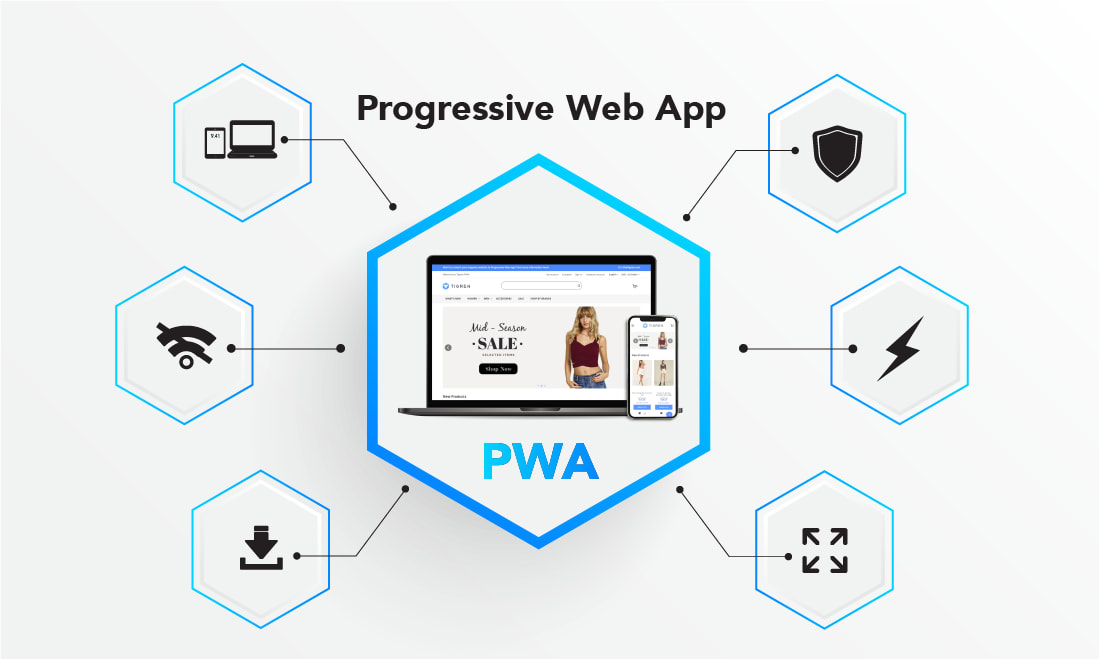
You added manifest.json, registered a Service Worker, tested it — everything works.
But a week later, users see an old version of the site, Google indexes incorrect pages,
and analytics show half as many views as there actually are.
Spoiler: 90% of these problems are a consequence of typical PWA integration mistakes that are easy to avoid if you know about them in advance.
⚡ In Short
- ✅ HTML Caching — the most dangerous mistake: users see outdated content, and you don't even know about it
- ✅ Service Worker can block updates: without a proper activation strategy, old code lives forever
- ✅ PWA on iOS has unique limitations: Safari clears the cache after 7 days of inactivity
- 🎯 You will get: 8 detailed breakdowns in "Scenario → Problem → Solution" format with ready-made code for each situation
- 👇 Below — real examples, code snippets, and a verification checklist
📚 Article Contents
🎯 Mistake 1. Caching HTML pages (the most dangerous mistake)
Caching dynamic HTML
If a Service Worker caches HTML pages using a Cache First strategy, users will forever remain
on an old version of the site. New products, promotions, bug fixes — they won't see any of this
until they manually clear their browser cache.
Caching CSS and JS is correct. Caching HTML with Cache First is a path to invisible updates.
📋 Scenario
You deployed a PWA for an online store. The Service Worker caches all responses, including HTML pages,
using a Cache First strategy — it first looks in the cache, and only if it's not there, it goes to the network.
A week later, you updated the product catalog, changed prices, and added a promotional banner. But users
who have visited the site before continue to see the old version.
❌ Problem
The Cache First strategy for HTML means: the browser doesn't even try to check if there's a newer
version on the server. It always serves what's already in the cache. For static resources (fonts,
icons, libraries), this is ideal. For HTML that changes, it's a disaster.
The user doesn't see updates, doesn't see new products, and might even place an order
for an item that is no longer in stock.
✅ Correct Strategy
Use Network First for HTML pages: the request first goes to the server,
and only if the network is unavailable, the cached version is shown. This way, the user always gets
fresh content, and the cache serves only as a fallback for offline mode.
self.addEventListener('fetch', event => {const url = new URL(event.request.url);
// Static resources — Cache First (rarely change)
if (url.pathname.match(/\.(css|js|png|jpg|woff2)$/)) {
event.respondWith(
caches.match(event.request)
.then(cached => cached || fetch(event.request))
);
return;
}
// HTML pages — Network First (always fresh content)
event.respondWith(
fetch(event.request)
.then(response => {
if (response.ok) {
const clone = response.clone();
caches.open('html-cache').then(cache =>
cache.put(event.request, clone)
);
}
return response;
})
.catch(() => caches.match(event.request))
);
});
Key principle: divide the cache into two types. Static assets (CSS, JS, images) —
Cache First with versioning via cache name. HTML and API — Network First, so that data is always
up-to-date.
🎯 Service Worker blocks page updates
Outdated Service Worker
Without skipWaiting() and a proper activation strategy, the new Service Worker waits
until the user closes all site tabs. This can take days or weeks — all this time
the old version with potential bugs is running.
You deployed a critical bug fix, but users aren't receiving it — because the old Service Worker is still "on guard."
📋 Scenario
You found and fixed a serious caching bug — some users were shown someone else's
profile page. You deployed a new sw.js with the fix. But the new Service Worker
doesn't activate — it waits in "waiting" status until all tabs with your
site are closed. Users who keep a tab open constantly may not receive updates for weeks.
❌ Problem
By default, the browser does not activate a new Service Worker until the old one serves at least one
open tab. This is done for stability — so that caching logic does not suddenly change during a user's session.
But in practice, this means critical updates get stuck in the queue.
On mobile devices, the situation is even worse — Safari on iOS can keep a PWA "alive" in the background
for a long time.
✅ Correct Strategy
Add skipWaiting() to the install event — this forces the new Service Worker
to become active immediately, without waiting for tabs to close. And clients.claim() in the
activate event ensures that already open pages immediately come under the control of the new SW.
Additionally — version your cache so that old data is automatically deleted.
const CACHE_NAME = 'my-app-v3'; // Change the version with each deployself.addEventListener('install', event => {
// Don't wait for tabs to close — activate immediately
self.skipWaiting();
event.waitUntil(
caches.open(CACHE_NAME)
.then(cache => cache.addAll(STATIC_ASSETS))
);
});
self.addEventListener('activate', event => {
event.waitUntil(
caches.keys().then(keys =>
Promise.all(
// Delete all old cache versions
keys.filter(key => key !== CACHE_NAME)
.map(key => caches.delete(key))
)
).then(() => {
// Take control of all open tabs
return self.clients.claim();
})
);
});
Tip: automate cache versioning. The simplest option is to use a
timestamp or a git commit hash as part of the cache name. This way, you'll never forget to update the version
after deployment.
A detailed breakdown of iOS Push Notifications, step-by-step code, and 7 common issues —
PWA Push Notifications on iOS in 2026: What Actually Works
.
🎯 PWA intercepts navigation (routing error)
Service Worker intercepts foreign routes
If a Service Worker is registered in the root directory without route filtering,
it intercepts requests to the admin panel, API endpoints, webhooks, and third-party services.
This leads to authentication errors, incorrect responses, and UI "freezes."
The administrator cannot log in to the admin panel because the Service Worker serves them a cached homepage instead of /admin/login.
📋 Scenario
You have a site with a client-side part at / and an admin panel at /admin.
The Service Worker is registered with scope: "/" and caches all GET requests. An administrator
navigates to /admin/dashboard, but instead of the admin panel, they see a cached version
of the homepage. Or even worse — API requests to /api/webhook from a payment system
are intercepted by the SW and return HTML instead of JSON.
❌ Problem
By default, a Service Worker intercepts all requests within its scope. If the scope is the root
of the site /, it handles absolutely everything: client pages, admin panel, REST API,
webhooks, download files. Without explicit route filtering, this leads to unpredictable
behavior — especially for authenticated pages where caching might show another user's data.
✅ Correct Strategy
Clearly define in the fetch handler which routes the Service Worker should handle,
and which ones it should skip without intervention. The rule is simple: anything that is not public client content
should pass directly through the SW to the server.
self.addEventListener('fetch', event => {const url = new URL(event.request.url);
// Skip everything that doesn't need caching
if (event.request.method !== 'GET') return;
if (url.pathname.startsWith('/api/')) return;
if (url.pathname.startsWith('/admin')) return;
if (url.pathname.startsWith('/webhook')) return;
if (url.pathname.startsWith('/login')) return;
if (url.pathname.startsWith('/register')) return;
if (url.pathname.startsWith('/logout')) return;
// Authenticated pages — do not cache
if (url.pathname.startsWith('/dashboard')) return;
if (url.pathname.startsWith('/profile')) return;
if (url.pathname.startsWith('/payment')) return;
// Audio and large files — do not cache
if (url.pathname.startsWith('/audio')) return;
if (url.pathname.startsWith('/upload')) return;
// Only public content — Network First
event.respondWith(
fetch(event.request)
.then(response => {
if (response.ok) {
const clone = response.clone();
caches.open('public-cache').then(c => c.put(event.request, clone));
}
return response;
})
.catch(() => caches.match(event.request))
);
});
"Whitelist" principle: instead of thinking "what to exclude," it's better to define
"what exactly to cache." Public pages (homepage, blog, catalog, FAQ) — cache them. Everything else — skip.
This is safer than trying to anticipate all routes that should not be cached.
🎯 SPA navigation without pageview events
Analytics loses data
In a Single Page Application (SPA), page transitions occur without a full reload.
Google Analytics and other analytics systems only record the first load, and all subsequent
transitions are invisible. You lose 60-80% of real user behavior data.
According to analytics, you have 1000 views per day. In reality — 5000. But you don't know this because SPA "eats" pageviews.
📋 Scenario
You launched a PWA as an SPA on React or Vue. The user visits the homepage — Google Analytics
records a pageview. Then they navigate to the catalog, open a product, read reviews — but all of this
happens without a page reload (client-side routing). GA does not record any of these
transitions. In your report — 1 view instead of 4.
❌ Problem
Classic Google Analytics (and most analytics systems) records a pageview upon page load
— when the browser makes a full request to the server. In an SPA, this doesn't happen: JavaScript
changes the URL via the History API and injects new content without a reload.
Consequences: incorrect conversion funnel, underestimation of popular pages, inability to evaluate
content effectiveness and advertising campaigns.
✅ Correct Strategy
Track URL changes via the History API and manually send a pageview on each transition.
For Google Analytics 4 (GA4), use the page_view event. For server-side applications
on Thymeleaf / Spring Boot, where each page is a full request, this problem is less relevant,
but if you use AJAX navigation or htmx — check it.
// For SPA: track every route change// React Router, Vue Router or manual navigation
function trackPageView(path) {
gtag('event', 'page_view', {
page_path: path,
page_title: document.title
});
}
// Option 1: listen for popstate ("back/forward" buttons)
window.addEventListener('popstate', () => {
trackPageView(window.location.pathname);
});
// Option 2: intercept pushState
const originalPushState = history.pushState;
history.pushState = function() {
originalPushState.apply(this, arguments);
trackPageView(arguments[2]); // third argument — URL
};
// Option 3: for React Router
// in the root component
useEffect(() => {
trackPageView(location.pathname);
}, [location.pathname]);
Important: if your PWA is built on server-side rendering (Thymeleaf, Django,
Laravel) and each page is a separate HTTP request, this error does not apply to you. GA will work
correctly "out of the box." The problem is relevant specifically for SPA frameworks (React, Vue, Angular).
🎯 Problems with canonical URL
Duplicate pages in Google's index
PWA can create multiple versions of one page: ?source=pwa,
?utm_source=homescreen, with and without a trailing slash. Google indexes them as different
pages, diluting SEO weight and creating duplicates in search results.
One page — three URLs in Google's index. Your SEO traffic is split into three instead of concentrating on one.
📋 Scenario
In manifest.json, you specified "start_url": "/?source=pwa" to
track in analytics how many people access via the installed PWA. Also, a marketer
added UTM tags for advertising campaigns. As a result, the same homepage is accessible
at three addresses: /, /?source=pwa, and
/?utm_source=homescreen. Google sees three different pages with identical content.
❌ Problem
Search bots index the URL completely — with all parameters. Without a proper canonical tag,
Google doesn't know which version to consider primary. It might choose any of them — or even
consider them duplicates and lower the ranking of all three. This is a classic problem of "diluting" SEO weight.
Especially painful for sites where each page is a potential entry point from search.
✅ Correct Strategy
Always specify a canonical URL without tracking parameters. In manifest.json, you can
leave start_url with a parameter for analytics, but on the page itself, the canonical
should point to the clean URL. Also, ensure that the canonical is the same for versions with
and without a trailing slash.
<!-- On EVERY page of the site --><link rel="canonical" href="https://example.com/catalog">
<!-- Even if the actual URL is: -->
<!-- https://example.com/catalog?source=pwa -->
<!-- https://example.com/catalog?utm_source=homescreen -->
<!-- https://example.com/catalog/ (with trailing slash) -->
<!-- manifest.json — here the parameter is acceptable for analytics -->
{
"start_url": "/?source=pwa"
}
<!-- Thymeleaf example -->
<link rel="canonical" th:href="${pageSEO.canonicalUrl}">
<!-- Spring Boot Controller -->
// Canonical always without parameters
String canonical = "https://kazkiua.com" + request.getRequestURI();
seo.setCanonicalUrl(canonical); // without ?source=pwa
Check: open Google Search Console → Pages → Excluded →
"Duplicate without canonical tag." If you see your pages with parameters there — the canonical
is configured incorrectly.
🎯 Forgot HTTPS on a subdomain
Service Worker does not register without HTTPS
Service Worker — a key component of PWA — works exclusively over HTTPS (the only exception is
localhost for development). If your subdomain (api.example.com,
cdn.example.com) works over HTTP, the SW will not be able to cache resources from that source.
The main domain is on HTTPS, but the CDN for images is on HTTP. The Service Worker silently ignores all images.
📋 Scenario
Your site https://example.com works over HTTPS. The Service Worker is registered
and caches pages. But images are loaded from a CDN at http://cdn.example.com
(without SSL). When trying to cache these images, the SW gets a mixed content error — the browser blocks
HTTP requests from a page loaded over HTTPS. As a result, in offline mode, all
images disappear.
❌ Problem
The HTTPS requirement applies not only to the main domain but also to all resources loaded
on the page. Mixed content (mixing HTTPS and HTTP) is blocked by modern browsers.
A Service Worker won't even be able to execute fetch() to an HTTP resource from an HTTPS page.
This error is particularly insidious because everything works with an active internet connection (the browser loads
images directly), but breaks in offline mode (the SW cannot serve uncached content).
✅ Correct Strategy
Ensure that absolutely all resources — main domain, subdomains, CDN, external APIs —
work over HTTPS. Use free Let's Encrypt certificates. For CDN services
(Cloudinary, AWS CloudFront, Cloudflare), HTTPS is usually enabled by default — check this.
<!-- ❌ INCORRECT: mixed content --><img src="http://cdn.example.com/photo.jpg">
<script src="http://analytics.example.com/tracker.js"></script>
<!-- ✅ CORRECT: everything over HTTPS -->
<img src="https://cdn.example.com/photo.jpg">
<script src="https://analytics.example.com/tracker.js"></script>
<!-- ✅ OR: protocol-relative URL (uses page protocol) -->
<img src="//cdn.example.com/photo.jpg">
<!-- Check in DevTools: Console → filter "Mixed Content" -->
<!-- Or: Security tab → check the status of each resource -->
Quick check: open DevTools → Console and look for "Mixed Content" warnings.
Or go to the Security tab — it will show which resources are loaded
over an insecure connection.
🎯 manifest.json without a proper scope
PWA "captures" foreign URLs
The scope parameter in manifest.json defines which URLs belong to your PWA. Without it
or with too broad a scope, the PWA can intercept navigation to third-party services,
payment gateways, and OAuth pages, breaking critical flows.
The user clicks "Pay" — and instead of going to the payment page, sees an error because the PWA tries to open it in its own window.
📋 Scenario
Your PWA is installed on the home screen. The user places an order and clicks "Pay."
The site redirects to https://pay.example.com/checkout — an external payment gateway.
But the PWA opens this URL in its standalone window instead of the external browser. The payment page
does not work correctly without a full browser environment, and the payment fails.
❌ Problem
If scope is not specified in manifest.json, the browser automatically determines it based on
the manifest's location. This can lead to the PWA considering URLs that do not belong to it as its own.
External links that should open in the browser (payments, OAuth, social
networks) open in the PWA window — and often break.
✅ Correct Strategy
Explicitly specify scope in manifest.json. For most sites, this is "/" — the root
of your domain. URLs outside the scope will automatically open in the external browser.
For external links in your HTML, add target="_blank".
// manifest.json{
"name": "My PWA",
"short_name": "MyPWA",
"start_url": "/",
"scope": "/",
"display": "standalone",
"background_color": "#ffffff",
"theme_color": "#4f46e5"
}
// If PWA lives in a subdirectory:
{
"start_url": "/app/",
"scope": "/app/"
}
// In HTML — open external links in the browser
<a href="https://pay.example.com/checkout"
target="_blank"
rel="noopener noreferrer">
Pay
</a>
<a href="https://accounts.google.com/oauth"
target="_blank"
rel="noopener noreferrer">
Sign in with Google
</a>
Rule: everything that goes beyond your domain — payments, OAuth, social
networks — should have target="_blank". This ensures opening in a full browser
regardless of scope settings.
🎯 iOS Safari clears cache after 7 days
Apple deletes PWA data on inactivity
Safari on iOS automatically clears all PWA cache (Cache API, IndexedDB, LocalStorage) if
the user has not opened the app for 7 days. This means that offline functionality,
saved data, and even authentication — everything disappears without warning.
The user opens the PWA after a week of vacation — and starts from scratch: authentication reset, saved data gone, cache empty.
📋 Scenario
You created a PWA for reading articles offline. The user saved 20 articles to the cache to read
on the plane. But the flight was postponed for 10 days. When they finally open the PWA — the cache is empty.
Safari deleted all saved data because the PWA was not used for more than 7 days.
No warning — just a blank screen.
❌ Problem
Apple implemented an Intelligent Tracking Prevention (ITP) policy that limits data storage
for websites. For PWAs on iOS, this means: if a user does not visit the app for
7 days, Safari has the right to delete all data written via JavaScript — Cache API, IndexedDB,
LocalStorage, SessionStorage. This limitation does not apply to native apps from the App Store,
only PWAs. There is no such limitation on Android.
✅ Correct Strategy
It is impossible to completely bypass this limitation — it's an Apple decision at the operating system level.
But you can minimize the consequences: do not rely on client-side cache as the sole data storage,
store critical data on the server, and when opening the PWA, always check for cache presence
and restore it as needed.
// On each PWA launch — check cache statusasync function checkAndRestoreCache() {
const cache = await caches.open('my-app-v3');
const keys = await cache.keys();
if (keys.length === 0) {
console.log('Cache is empty — restoring basic resources');
await cache.addAll(STATIC_ASSETS);
// If there is authentication — check the token
const token = localStorage.getItem('auth_token');
if (!token) {
// Token also deleted — redirect to login
window.location.href = '/login';
}
}
}
// Call on load
if ('serviceWorker' in navigator) {
checkAndRestoreCache();
}
// Tip: store critical data on the server
// Client-side cache — is for speed, not storage
// ❌ Do not store here: drafts, settings, progress
// ✅ Store on the server, and cache — only for speed
Main rule for iOS: client-side cache is a speed optimization, not
reliable storage. Everything important should be stored on the server. The cache can disappear at any
moment — and your application must be ready for this.
❓ Frequently Asked Questions (FAQ)
Is a Service Worker needed if my site is server-rendered (Thymeleaf, Django, Laravel)?
Yes, if you want PWA functionality: home screen installation, offline mode,
fast loading. But the caching strategy will be simpler — Network First for HTML,
Cache First for static assets. SPA-specific problems (mistake 4) do not apply to you.
How to check if my Service Worker is working correctly?
Chrome DevTools → Application → Service Workers. Here you will see the SW status (active, waiting,
redundant), and you can force update or stop it. The Cache Storage tab will show
what exactly is cached. Also, run Lighthouse → PWA — it will show a list of problems.
Can I unregister (delete) a Service Worker if it broke the site?
Yes. Deploy a new sw.js with an empty fetch handler, or use
self.registration.unregister(). In an extreme case — the user can manually
delete the SW via DevTools → Application → Service Workers → Unregister.
Does PWA affect SEO?
Positively — if configured correctly. PWA improves Core Web Vitals (loading speed),
which is a Google ranking factor. But incorrect HTML caching (mistake 1) or duplicate
canonical tags (mistake 5) can harm SEO.
Are iOS limitations permanent?
The situation is slowly improving. Apple added push notifications in iOS 16.4, background sync
in Safari 18+. But the 7-day cache limitation remains for now. The European DMA is putting pressure on Apple,
but there are no real changes in 2026 yet.
✅ Conclusions and Checklist
When I integrated PWA into my Kazki AI project — a service
of personalized audio fairy tales for children on Spring Boot — I encountered most
of the mistakes on this list. Not in theory, but in production, with real users. That's why
I decided to compile this material: each scenario here is either my own experience or
a problem I observed among fellow developers.
The main conclusion I came to: PWA is not "add manifest.json and you're done."
It's an architectural solution that affects caching, analytics, SEO, authentication, and behavior
across different platforms. On Android, everything works almost perfectly — Kazki AI users received
an automatic installation banner, instant page loading, and full-screen mode without
an address bar. On iOS, the situation is more complex — there's no automatic banner, the cache can disappear
after a week of inactivity, and users need to be explained how to add the app to the screen
via the "Share" menu in Safari.
Another important lesson is cache versioning. After each deploy, I change
CACHE_NAME (for example, from kazki-v2 to kazki-v3),
and the old cache is automatically deleted. This is a simple rule, but without it, users
remain on the old version of the site indefinitely.
My checklist before each PWA deploy:
1. Caching: HTML — Network First, static assets — Cache First with versioning.
2. SW Update: skipWaiting() + clients.claim() + new cache version.
3. Routing: API, admin, authentication, payments — excluded from SW handling.
4. Analytics: pageview sent on each transition (relevant for SPA).
5. Canonical: each page has a canonical URL without UTM parameters.
6. HTTPS: all resources, including CDN and subdomains — over HTTPS.
7. Scope: manifest.json has an explicit scope, external links — target="_blank".
8. iOS: critical data — on the server, client-side cache — for speed only.
I go through this checklist before each Kazki AI release. It takes 5 minutes but saves
hours of debugging and dissatisfied users. I hope my experience helps you
avoid the same pitfalls and launch a PWA that truly enhances your users' experience.
If you are just starting your acquaintance with PWA — I recommend first reading my previous article
Progressive Web Apps (PWA) — A Complete Guide for Business and Developers,
where I covered in detail what PWA is, how they work, a comparison with native apps,
and a step-by-step guide to creation.
📖 Sources and useful links